In my previous blog, I learned how to upload files directly to AWS S3 using Presigned URLs with FastAPI and React.
If you haven't read Part 1 yet, you can check it out here:
Part 1: https://jotechblog.netlify.app/blog/my-first-hands-on-experience-with-aws-s3-presigned-url-uploads
While that implementation worked well for learning, I noticed one thing that isn't recommended for production applications.
I was storing my AWS Access Key ID and Secret Access Key inside the application's .env file.
AWS_ACCESS_KEY_ID=xxxxxxxx
AWS_SECRET_ACCESS_KEY=xxxxxxxx
Although this is common during local development, storing long-term AWS credentials on production servers is not considered a best practice.
So I decided to learn how production applications securely access AWS services.
Why Avoid Access Keys in Production?
Access keys are long-lived credentials.
If someone accidentally gains access to your server or environment variables, they could use those credentials to access your AWS resources.
Managing and rotating access keys also becomes an operational task.
AWS provides a better solution:
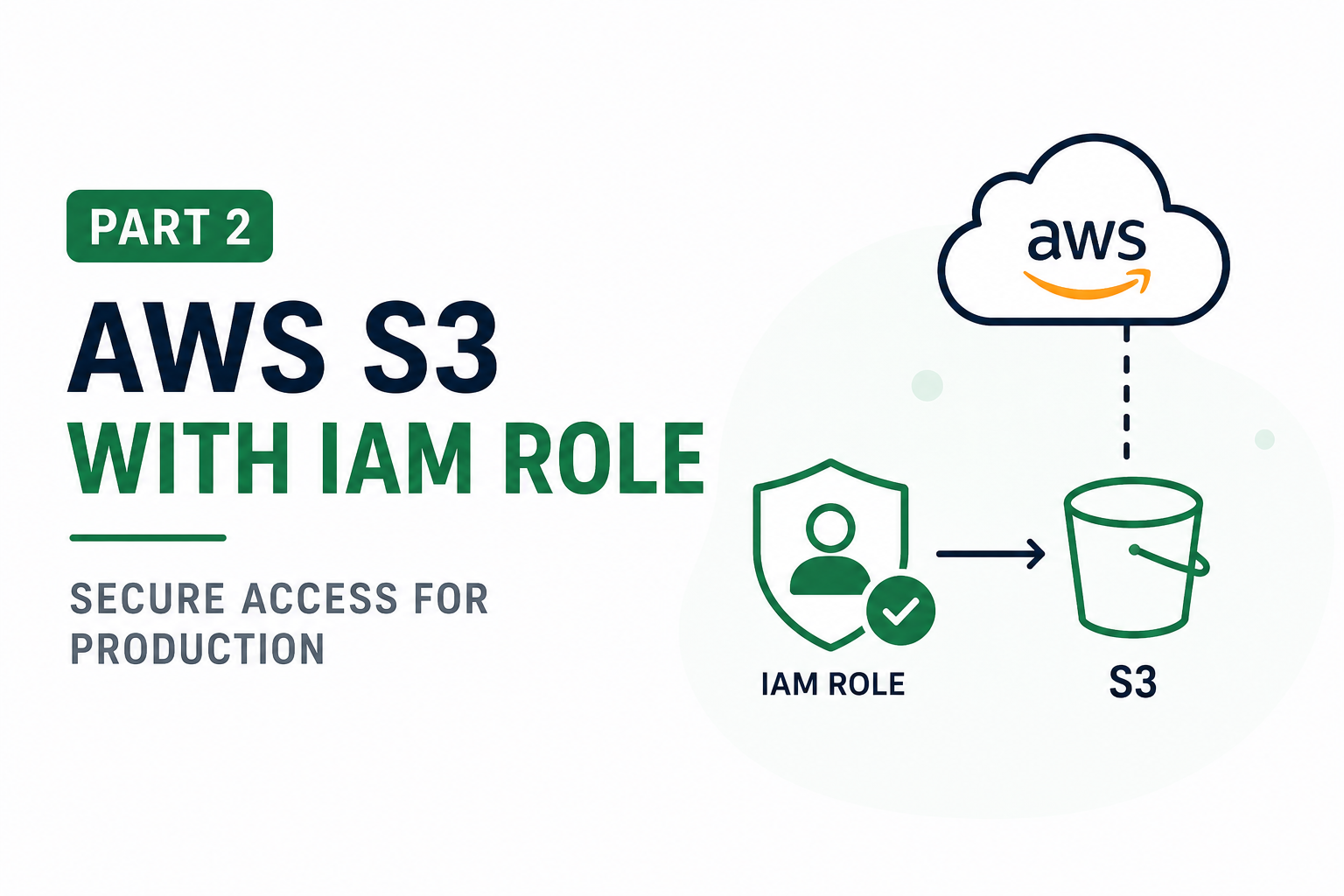
IAM Roles
Instead of storing AWS credentials inside your application, AWS automatically provides temporary credentials to the EC2 instance.
Your application doesn't need to know or store any AWS access keys.
Updating My Code
Previously, my S3 client looked like this:
self.s3_client = boto3.client(
    "s3",
    aws_access_key_id=setting.AWS_ACCESS_KEY_ID,
    aws_secret_access_key=setting.AWS_SECRET_ACCESS_KEY,
    region_name=setting.AWS_REGION,
)
This works well during local development, but it requires storing AWS credentials.
I updated the code so it behaves differently depending on the environment.
class AwsS3Service:
    def __init__(self, bucket_name, s3_client=None):
        self.bucket_name = bucket_name

        if setting.ENVIRONMENT == "production":
            self.s3_client = s3_client or boto3.client(
                "s3",
                region_name=setting.AWS_REGION,
            )
        else:
            self.s3_client = s3_client or boto3.client(
                "s3",
                aws_access_key_id=setting.AWS_ACCESS_KEY_ID,
                aws_secret_access_key=setting.AWS_SECRET_ACCESS_KEY,
                region_name=setting.AWS_REGION,
            )
Now the application behaves differently depending on where it is running.
Development
- Uses credentials from the
.envfile.
Production
- Uses the IAM Role attached to the EC2 instance.
- No AWS Access Key or Secret Key is required.
Validating Environment Variables
I also updated my application settings.
AWS credentials are now required only in development.
@model_validator(mode="after")
def validate_aws_credentials(self):
    if self.ENVIRONMENT != "production":
        if not self.AWS_ACCESS_KEY_ID:
            raise ValueError("AWS_ACCESS_KEY_ID is required in development")

        if not self.AWS_SECRET_ACCESS_KEY:
            raise ValueError("AWS_SECRET_ACCESS_KEY is required in development")

    return self
This allows production deployments to run without requiring AWS credentials in the environment.
Creating an IAM Role
To test this approach, I created a new IAM Role.
For this learning project, I attached the AmazonS3FullAccess policy.
Note: For real production applications, it's recommended to follow the Principle of Least Privilege and grant only the permissions your application actually needs instead of using
AmazonS3FullAccess.
Launching an EC2 Instance
Next, I launched a new EC2 instance.
After the instance was created, I attached the IAM Role.
The steps were:
EC2 Instance
    ↓
Actions
    ↓
Security
    ↓
Modify IAM Role
I selected the IAM Role that I had created and saved the changes.
From this point onward, AWS automatically provides temporary credentials to the EC2 instance.
No access keys are needed.
Preparing the Server
After connecting to the EC2 instance using SSH, I prepared the environment.
Install uv
Since my project uses uv, I installed it on the server.
Clone the Project
I cloned my Git repository.
Install Dependencies
Next, I installed all project dependencies.
uv syncConfigure Environment Variables
I created a .env file.
This time, I only added the required application settings.
Notice that these variables are no longer needed:
AWS_ACCESS_KEY_ID
AWS_SECRET_ACCESS_KEY
Since the EC2 instance already has an IAM Role attached, boto3 automatically retrieves temporary credentials from AWS.
Start the Application
Finally, I started the FastAPI application.
uv run app.main:appThe application started successfully.
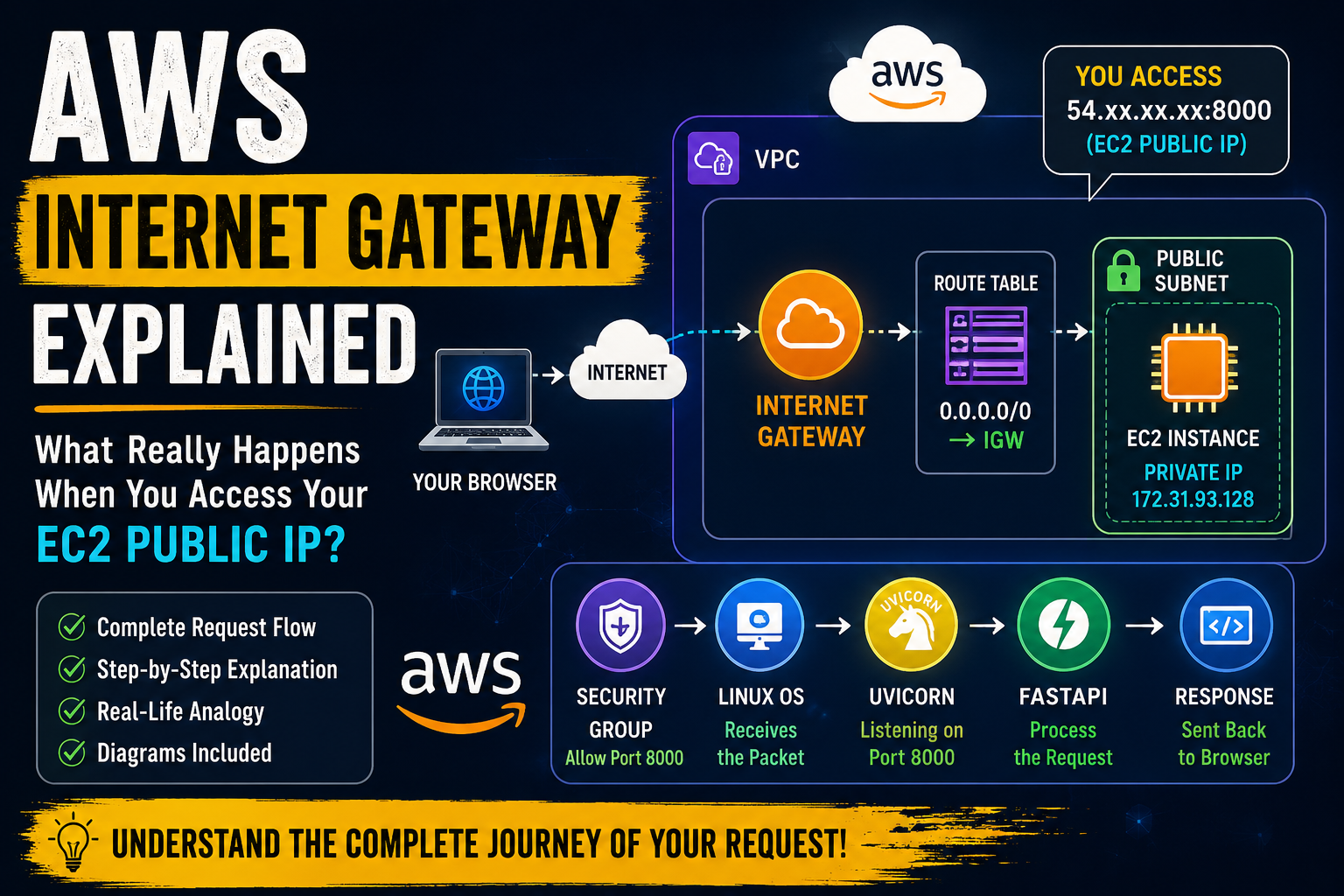
Configure the Security Group
Although the application was running, I still couldn't access it from my browser.
The reason was that the EC2 Security Group wasn't allowing incoming traffic on port 8000.
I updated the inbound rule.
Type: Custom TCP
Protocol: TCP
Port: 8000
Source: 0.0.0.0/0
For this learning project, I allowed access from all IP addresses (0.0.0.0/0) so I could test the application easily.
Note: In production, it's better to restrict access to trusted IP addresses or place your application behind a reverse proxy or load balancer instead of exposing application ports directly.
After updating the Security Group, I was able to access the application using:
http://<EC2-PUBLIC-IP>:8000I tested the file upload flow again.
Everything worked exactly as before, but this time the application accessed AWS S3 without storing AWS Access Keys or Secret Keys.
What I Learned
This small change helped me understand an important production practice.
Using IAM Roles provides several advantages:
- No AWS Access Keys stored on the server
- Temporary credentials are managed automatically by AWS
- Better security
- Easier credential management
- Follows AWS best practices
I also learned that boto3 automatically detects IAM Role credentials when running on an EC2 instance.
No additional authentication code is required.
Final Thoughts
The first part of my AWS learning journey focused on understanding how Presigned URL uploads work.
This second part helped me understand how applications running on AWS securely access AWS services without storing AWS credentials.
The code changes were relatively small, but they significantly improved the security of the application.
As I continue learning AWS, I'll keep improving my projects by replacing development-focused approaches with production-friendly practices and documenting everything I learn along the way.
Jobi S S
admin
Sharing technical insights, engineering concepts, and practical modern software development guides.
Community Discussion
Enjoyed this read? Show your support or share your thoughts.